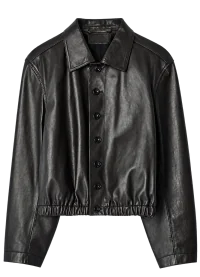
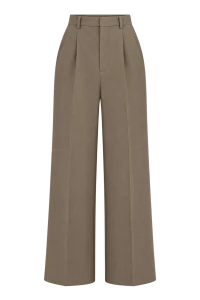
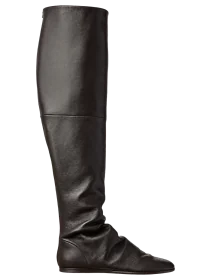
Label sizes and measurements
Use additional settings to add the label size, flat garment width and length. Flat width is not circumference. These guide the AI; M and L are not consistent across brands.
VIRTUAL TRY-ON
Explore how pieces work together on you before putting the outfit together in person.
Start a try-onSign in with Google or Yandex. Your first sign-in creates an account.
How it works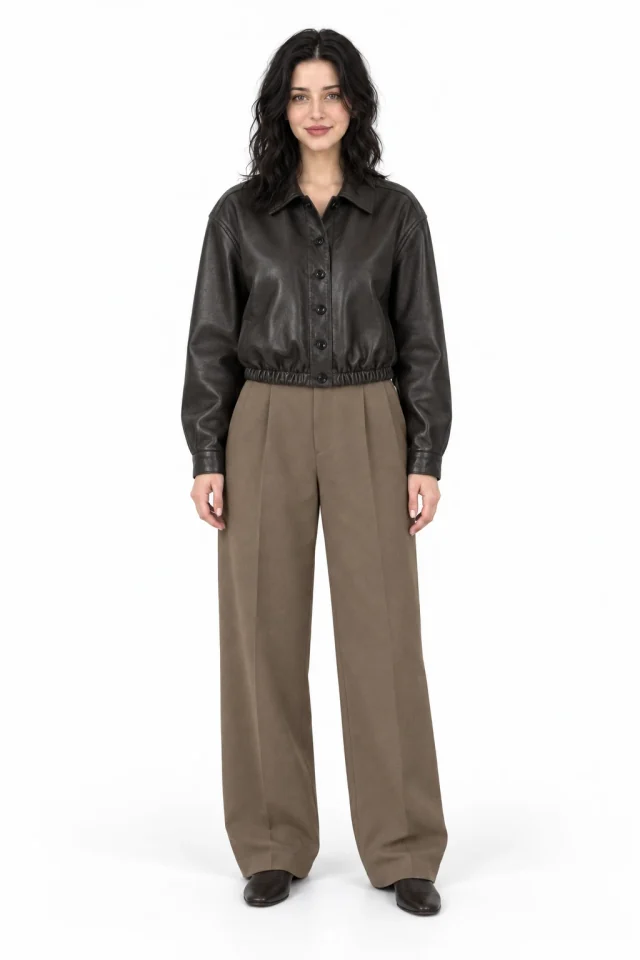
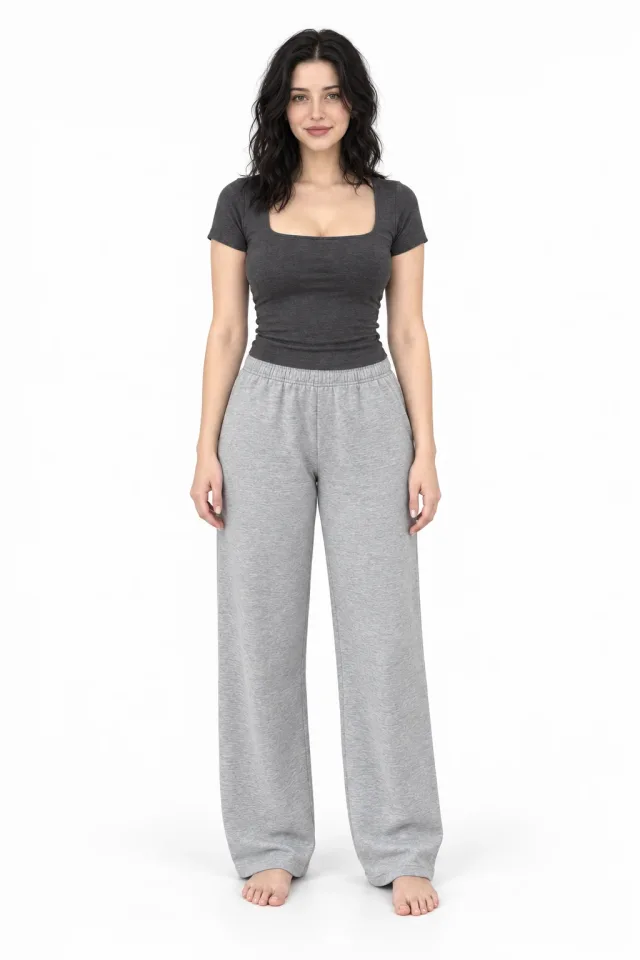
FITCHECK virtual try-on creates a new version of your photo with selected clothing. You provide the person photo and item references; the AI aims to transfer their colour, silhouette and details while preserving the person, pose and background.
Use it to compare combinations: one top with different trousers, a change of shoes or an extra accessory. Replace selected items and create another try-on; completed results are saved in your account history.
STEP BY STEP
Open the fitting room and upload a photo. The area where you want to wear the item must be visible.
Add a top, bottom or footwear. One item is enough to begin; access to extra accessories depends on your account package.
Optionally add size and measurements, then start the try-on. Download the finished image or send it to an AI stylist for feedback.
Use additional settings to add the label size, flat garment width and length. Flat width is not circumference. These guide the AI; M and L are not consistent across brands.
Add a request such as keeping an oversized silhouette or wearing a tank under a shirt. The reference item’s visible cut matters more than a generic size letter.
Accessory slots accept different wearable items. The AI tries to infer where each item belongs from its photo. If its purpose is ambiguous, explain it in your fit preferences.
No. A person photo and at least one item are enough. The AI is instructed to preserve categories you have not selected in the original photo.
You can use a photo of an item on a model, hanger or flat surface if you have permission to use it. Show the whole item. The AI is instructed to take the clothing, not the model’s face or body.
No. Size, width, length and fit preferences do not require a subscription. Image generation has separate limits and COINS usage shown in your account.
Yes. Replace or remove a selected item and create another try-on. You can also replace the original person photo.
FITCHECK sends the materials for your selected function to an AI processing provider. OpenAI or Provod AI is used depending on the service’s regional configuration. Storage and processing are explained in the privacy policy.
Talk through colours, silhouettes and outfit details with AI, including feedback on a photo.
Learn moreChoose your angle and show the right area of your body for a clearer try-on.
Learn moreAdd a hat, glasses, bag or another wearable item to a look on your own photo.
Learn moreAdd your photo, upload your items and build a look in the fitting room.