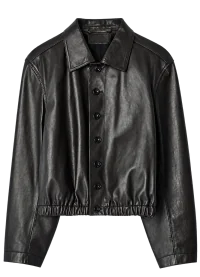
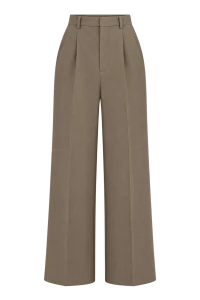
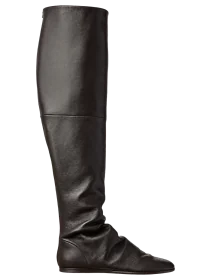
Hats, scarves and glasses
Keep your head and neck inside the frame and do not hide your face behind a phone. The item photo should show the frame shape, hat edges or the way a scarf is tied.
ACCESSORIES AND DETAILS
Explore how an extra item works with your clothes before changing the outfit in person.
Start a try-onSign in with Google or Yandex. Your first sign-in creates an account.
How it works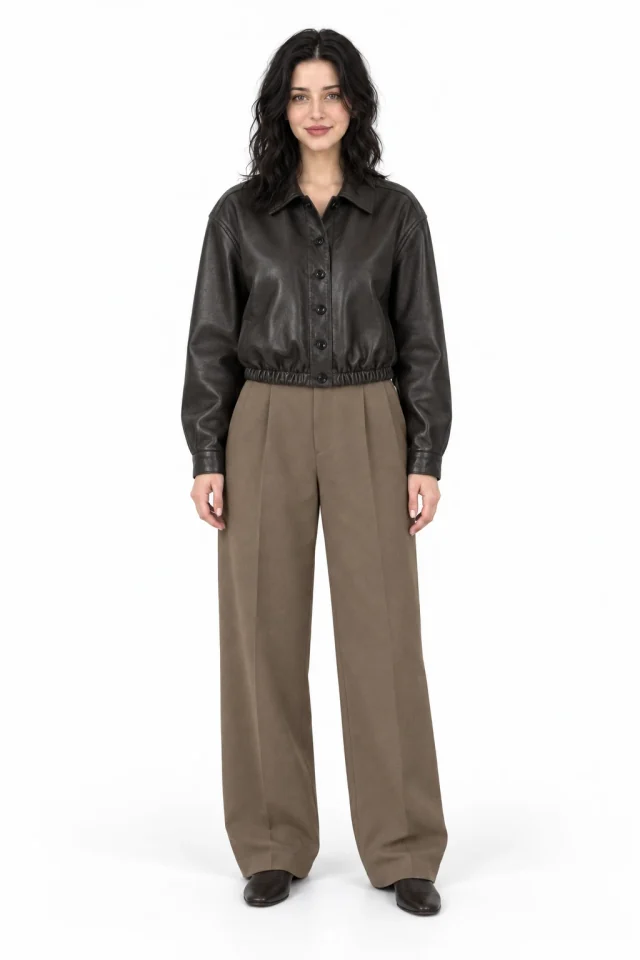
The FITCHECK fitting room has Accessory 1, Accessory 2 and Accessory 3 alongside the main Top, Bottom and Shoes categories. These additional slots accept different wearable items and are not limited to the objects shown in their icons. The AI tries to identify each item from its image and infer where it is worn.
Try a hat, scarf, glasses, bag, watch, belt, tights or an additional clothing layer. Upload each item separately and keep the relevant area of your body visible in your person photo. Additional slot availability and try-on limits depend on your current account access.
STEP BY STEP
Choose a photo with the relevant area visible: your face for glasses, wrist for a watch, waist for a belt or legs for tights. A bag needs a clear view of the hand, shoulder or torso where you want to carry it.
Add the item to an available additional slot. Show the whole item without a collage or text covering it. You can select a top, bottom and shoes in the main categories for the same try-on.
If placement is ambiguous, explain it in the additional fit settings: a bag on your shoulder or a tank under a shirt, for example. Start the try-on, then check item placement, layers and details in the finished image.
Keep your head and neck inside the frame and do not hide your face behind a phone. The item photo should show the frame shape, hat edges or the way a scarf is tied.
Show the shoulder or hand for a bag and an uncovered wrist for a watch. A close reference helps distinguish straps, handles and fastenings, but the corresponding body area still needs to be visible in your person photo.
A belt needs a visible waist, and tights need visible legs. Upload a tank separately and explain how to layer it with the selected top. The AI tries to combine all selected items in one try-on.
No. All three additional slots are universal. Their icons show examples rather than restrictions: the AI identifies the item type and likely placement from its photo.
There are three additional slots, with one separately uploaded item in each. Combine them with a top, bottom and shoes. Check your account to see which slots are open and how many try-ons you can use.
Yes. An additional slot also accepts these wearable items. Upload a separate photo and describe the layer in your fit preferences. Show your legs for tights and torso for a tank; AI may get the layer order or details wrong.
Only if the relevant area is visible. A watch needs an uncovered wrist in the frame; a bag needs a view of where you want to hold or carry it. A close face selfie usually does not work for these tasks.
Check that the input photos clearly show both the item and the relevant body area. Try a clearer reference and explain how you want to wear it in your fit preferences. Generating again counts as a new try-on; current limits and COINS usage are shown in your account.
Preview how pieces work together on your own photo before deciding what to wear.
Learn moreTalk through colours, silhouettes and outfit details with AI, including feedback on a photo.
Learn moreChoose your angle and show the right area of your body for a clearer try-on.
Learn moreAdd your photo, upload your items and build a look in the fitting room.